Vintage Look
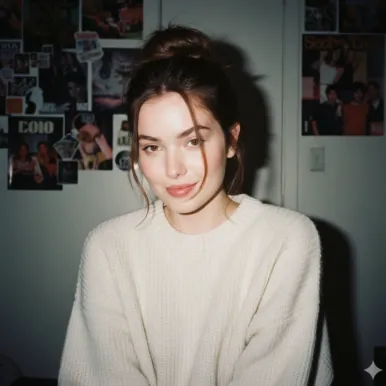
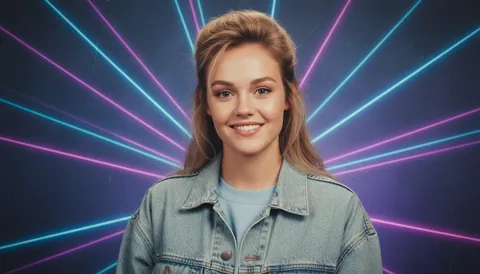
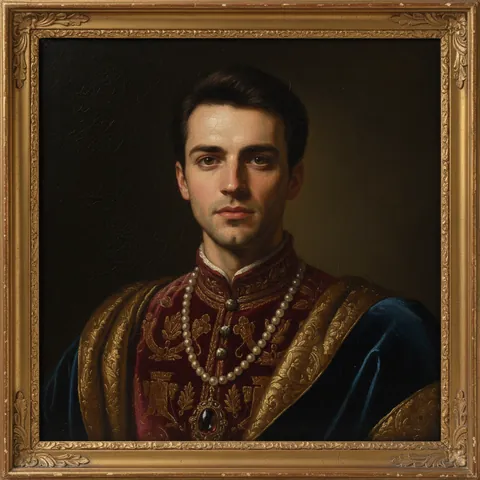
A vintage look that's more than a filter
Faded tones, film texture and a timeless mood.

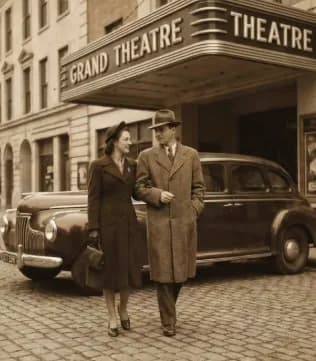
Prompts to try in the app
- “Vintage 1970s photo, faded warm colours”
- “Old sepia photograph look”
- “Kodachrome-style vintage colour”
Filter vs. AI style
A classic filter changes colours on top of the photo. An AI style re-renders the image — light, texture and tone — so the vintage look feels baked in rather than painted over.
Choose your era
Type the decade you want: "1950s black and white", "1970s faded colour", "1980s flash photo". PhotoCrafter applies it while keeping your face consistent, and saves each try as a new version.
Where vintage shines
- Throwback posts and birthday surprises
- Album covers and band promo shots
- Turning wedding or family photos into keepsakes
How to use Vintage Look in PhotoCrafter
- 1
Open PhotoCrafter
Download PhotoCrafter on iPhone, iPad or Android and open the app.
- 2
Add your photo
Tap + and pick a clear, well-lit photo from your camera roll.
- 3
Choose Vintage Look
Open Styles and select Vintage Look, or type an instruction like “Vintage 1970s photo, faded warm colours”.
- 4
Refine and save
Type follow-up tweaks if you like, compare versions, then save or share.
FAQ
Can I go back to the original?
Yes. The original and every version are kept so you can compare and export the one you like.
Does it restore old photos?
For sharpening and improving old photos, try the Auto Enhance style.