Moody Dark
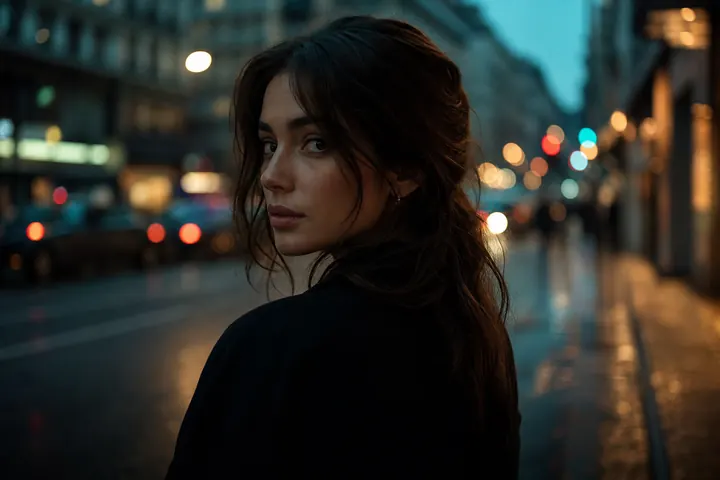
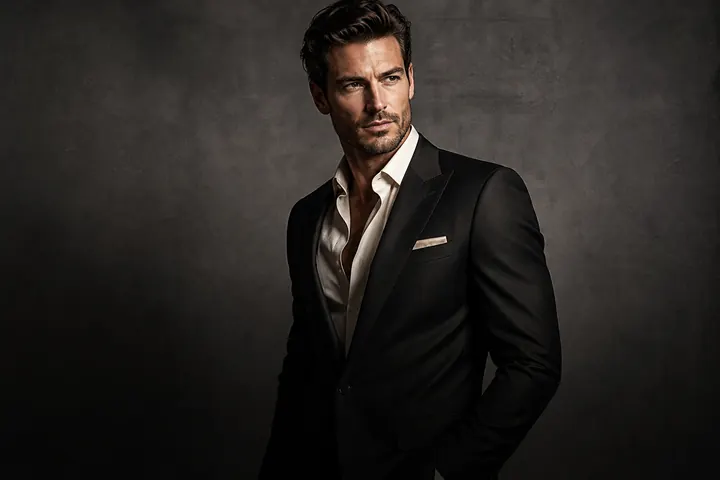
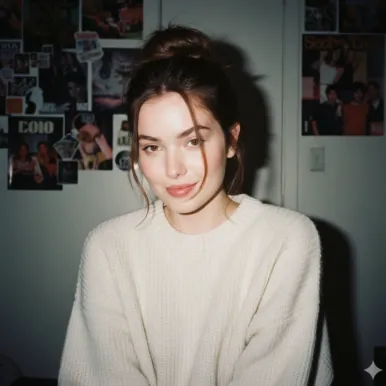
Dark, moody portraits with real depth
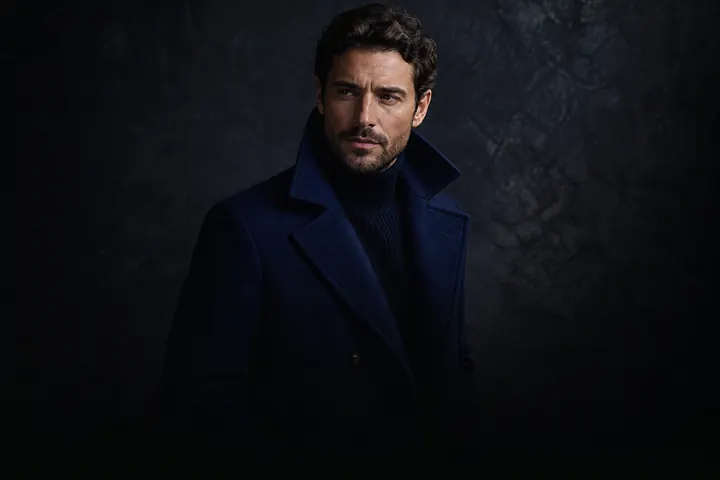
Low-key light, deep shadows, rich muted tones.

Prompts to try in the app
- “Moody low-key portrait, deep shadows”
- “Dark and moody, single candle-like warm light”
- “Chiaroscuro style lighting, muted colours”
Why moody works
Low-key portraits hide what doesn't matter and spotlight what does. Deep shadows add mystery, muted colours feel timeless, and a single light source draws the eye straight to the face. It's a favourite for musicians, artists, writers and anyone building a distinctive personal brand.
How to get it
Pick the Moody Dark style, or describe it yourself: "dark and moody, single warm light from the left". PhotoCrafter keeps your features consistent while it rebuilds the light.
Tip
Moody edits look best when the subject wears darker or neutral tones. If the first pass is too dark, type "lift the shadows a little" — you'll get a new version without losing the old one.
How to use Moody Dark in PhotoCrafter
- 1
Open PhotoCrafter
Download PhotoCrafter on iPhone, iPad or Android and open the app.
- 2
Add your photo
Tap + and pick a clear, well-lit photo from your camera roll.
- 3
Choose Moody Dark
Open Styles and select Moody Dark, or type an instruction like “Moody low-key portrait, deep shadows”.
- 4
Refine and save
Type follow-up tweaks if you like, compare versions, then save or share.
FAQ
Is moody the same as black and white?
No. Moody keeps colour, but muted and low-key. Use the Black & White style for monochrome.
Can I add more drama later?
Yes, type follow-up instructions like "more contrast" to create a new version.