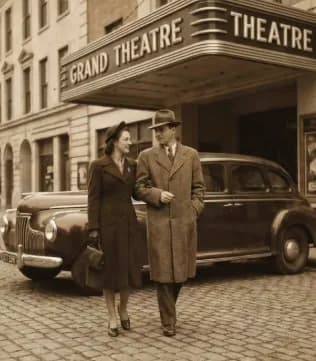
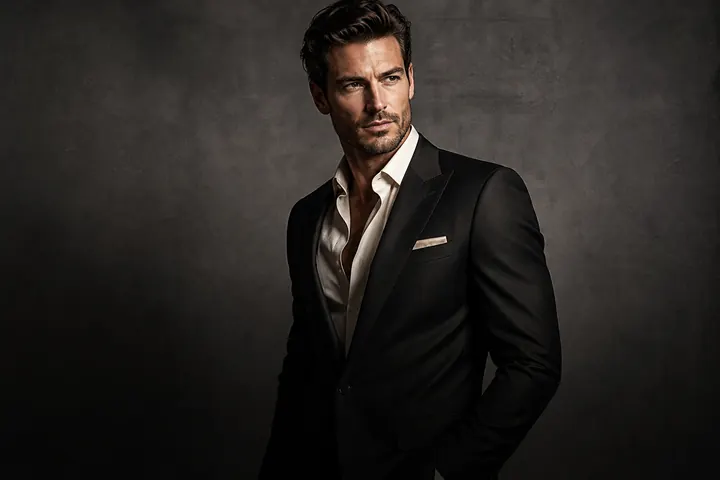
Renaissance Portrait
Turn your photo into a Renaissance masterpiece
Oil-paint texture, classical light, museum-frame energy.

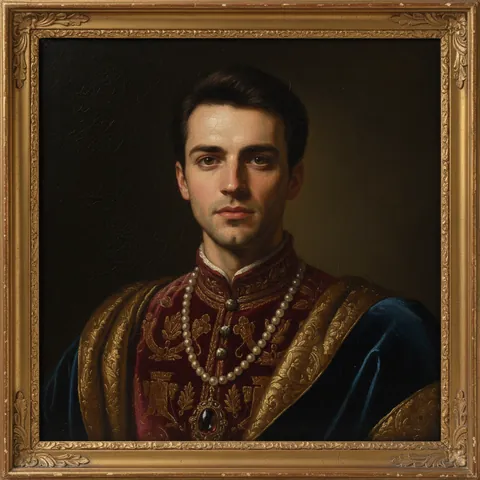
Prompts to try in the app
- “Renaissance oil painting portrait, dark background”
- “Classical Dutch master style, soft candlelight”
- “Baroque royal portrait with velvet and gold”
Why it's so shareable
Renaissance portraits are a perfect gift and a guaranteed conversation starter: pets, partners, parents and friends all look regal in oil paint. They also make memorable profile pictures and printable wall art.
Styles to try
- Renaissance / Classical Painting Portrait — soft, dark background, warm painterly light.
- Oil Painting — a looser, more modern brush texture.
Make it personal
Add details in the chat editor: "add a velvet cloak", "holding a book", "in a gold museum frame". Each idea becomes a new version you can compare.
How to use Renaissance Portrait in PhotoCrafter
- 1
Open PhotoCrafter
Download PhotoCrafter on iPhone, iPad or Android and open the app.
- 2
Add your photo
Tap + and pick a clear, well-lit photo from your camera roll.
- 3
Choose Renaissance Portrait
Open Styles and select Renaissance Portrait, or type an instruction like “Renaissance oil painting portrait, dark background”.
- 4
Refine and save
Type follow-up tweaks if you like, compare versions, then save or share.
FAQ
Can I print it?
Yes, export to your camera roll and print. Higher-resolution source photos give better prints.
Does it work for pets?
Portrait styles are tuned for people, but you can try pets with a descriptive prompt.