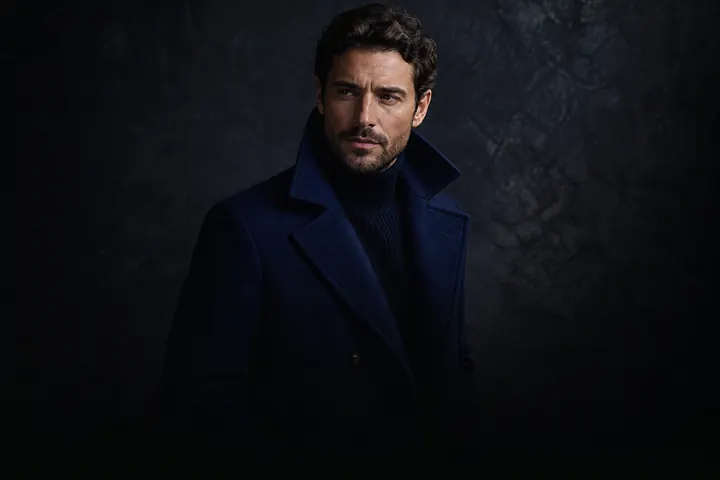
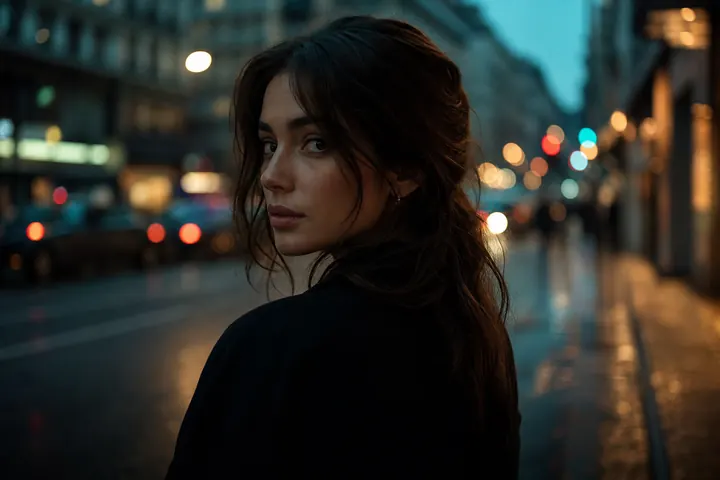
Editorial Portrait
Magazine-style editorial portraits, from your camera roll
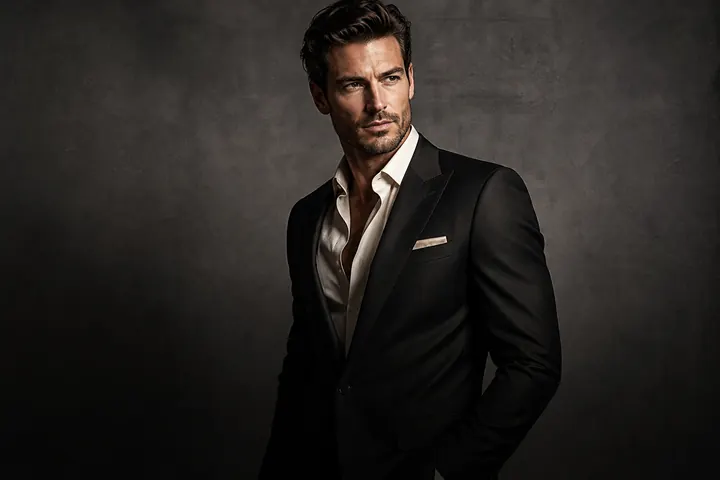
Sculpted light, clean tones and a high-fashion finish.
Prompts to try in the app
- “High-fashion editorial portrait, dark studio, single key light”
- “Magazine cover style, clean beige backdrop”
- “Black and white editorial, strong side light”
The editorial look, explained
Editorial photography is about intent: a single strong light, a simple backdrop, styling that feels deliberate and a pose with attitude. It's the look of magazine features and fashion campaigns — and it reads as confident and premium on any profile.
What PhotoCrafter does
The Editorial style re-lights your portrait with sculpted studio light, tidies the background into a seamless backdrop and gives the whole image a refined, high-end grade. Want a cover? Try the Magazine Portrait template in the app for typography-ready framing.
Ideas
- Creator media kits and press photos
- Dating-app profile lead photo
- Portfolio and "about me" pages
How to use Editorial Portrait in PhotoCrafter
- 1
Open PhotoCrafter
Download PhotoCrafter on iPhone, iPad or Android and open the app.
- 2
Add your photo
Tap + and pick a clear, well-lit photo from your camera roll.
- 3
Choose Editorial Portrait
Open Styles and select Editorial Portrait, or type an instruction like “High-fashion editorial portrait, dark studio, single key light”.
- 4
Refine and save
Type follow-up tweaks if you like, compare versions, then save or share.
FAQ
Will my outfit change?
Only if you ask. By default the style focuses on light, backdrop and finish.
Can I make it black and white?
Yes — add "black and white" in the chat editor or use the Black & White style.