AI Yearbook / 90s School Photo
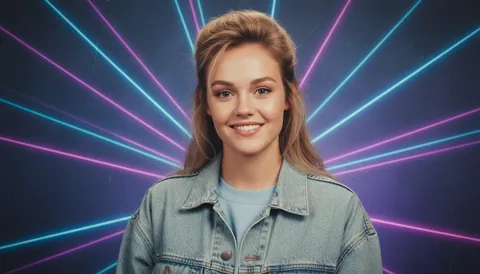
Your 90s yearbook photo, generated in seconds
Laser backdrop, soft focus, retro colour — totally rad.

Prompts to try in the app
- “90s school yearbook photo, blue laser background”
- “Retro yearbook portrait, soft focus, film grain”
- “80s yearbook photo with big hair styling”
The trend
AI yearbook photos took over social feeds because they're funny, nostalgic and surprisingly flattering. The classic ingredients: a mottled or laser-beam backdrop, soft focus, slightly faded colour and that very specific school-photographer lighting.
How to make one
- Open PhotoCrafter and pick a clear, front-facing photo.
- Choose AI Yearbook / 90s School Photo from Styles.
- Share it — or type "make it 80s instead" for a different decade.
Make it a series
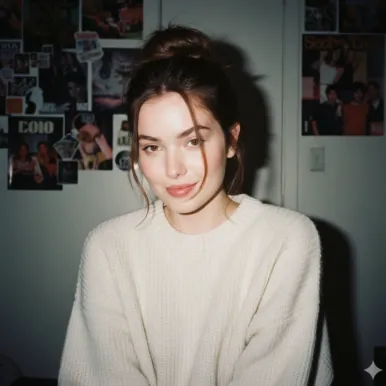
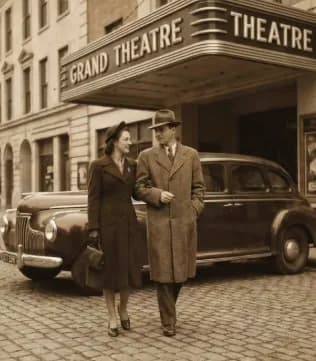
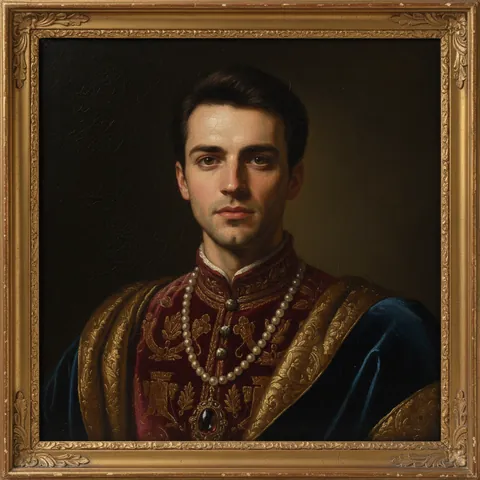
Post the yearbook photo next to your real photo and a 1990s film-camera portrait for a "through the decades" carousel. Our guide to the 90s film camera look has more ideas.
How to use AI Yearbook / 90s School Photo in PhotoCrafter
- 1
Open PhotoCrafter
Download PhotoCrafter on iPhone, iPad or Android and open the app.
- 2
Add your photo
Tap + and pick a clear, well-lit photo from your camera roll.
- 3
Choose AI Yearbook / 90s School Photo
Open Styles and select AI Yearbook / 90s School Photo, or type an instruction like “90s school yearbook photo, blue laser background”.
- 4
Refine and save
Type follow-up tweaks if you like, compare versions, then save or share.
FAQ
Is the AI yearbook style free?
PhotoCrafter is free to download and you can try styles before subscribing. Pro unlocks every style and new trending styles weekly.
Will it still look like me?
Yes, styles are written to keep the facial features of the uploaded person consistent.