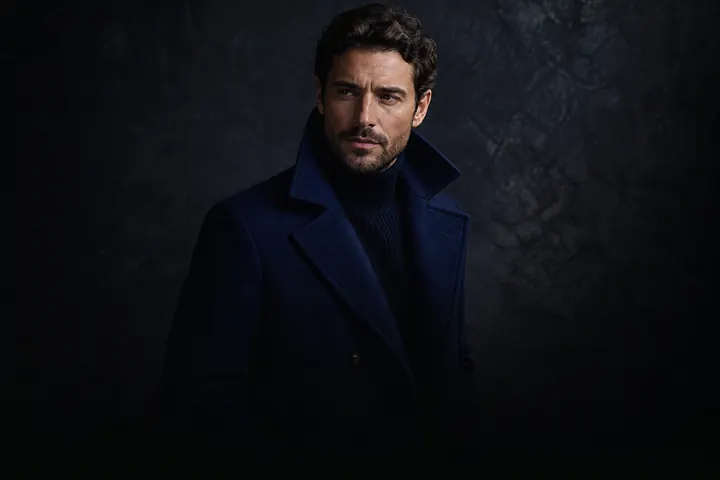
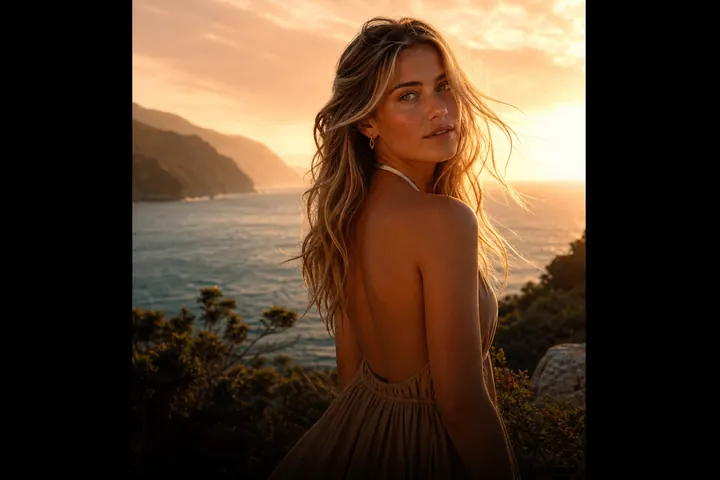
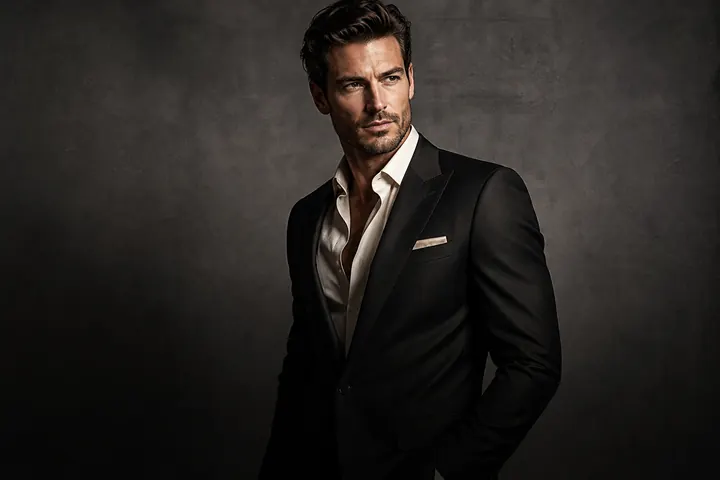
Cinematic Portrait
Make any photo look like a frame from a film
Dramatic light, rich colour grading and that movie-still depth.

Prompts to try in the app
- “Make it cinematic”
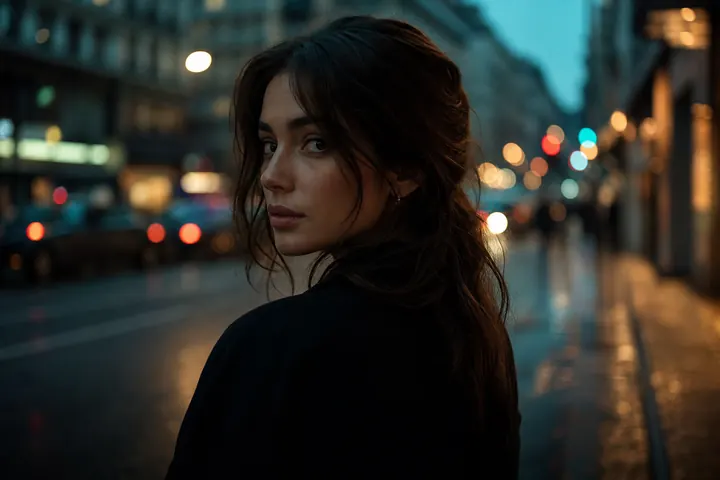
- “Neo-noir neon night street, rain reflections”
- “Moody film still, anamorphic bokeh, teal and amber grade”
What makes a photo "cinematic"?
Film stills feel different from snapshots because of three things: motivated light (a lamp, a window, neon — a source you could point to), colour grading that pushes shadows and highlights in different directions, and shallow depth of field that separates the subject from a busy world.
PhotoCrafter's Cinematic style adds all three. Or open the chat editor and literally type "make it cinematic" — it's the most popular prompt in the app.
Works best with
- Night or dusk street photos with lights in the background
- Close portraits with a clear subject
- Travel shots that feel flat straight out of the camera
Make it yours
Add direction after the first pass: "colder", "more rain", "add lens flare", "less contrast". Compare V1, V2 and V3 and keep the one you like.
Need ideas? Try our list of AI photo editing prompts that actually work.
How to use Cinematic Portrait in PhotoCrafter
- 1
Open PhotoCrafter
Download PhotoCrafter on iPhone, iPad or Android and open the app.
- 2
Add your photo
Tap + and pick a clear, well-lit photo from your camera roll.
- 3
Choose Cinematic Portrait
Open Styles and select Cinematic Portrait, or type an instruction like “Make it cinematic”.
- 4
Refine and save
Type follow-up tweaks if you like, compare versions, then save or share.
FAQ
Does the cinematic style change my face?
No. Lighting, colour and background change; your facial features stay consistent with the original photo.
Can I edit a photo that's already been styled?
Yes — each new instruction builds on the current version, and earlier versions stay available.