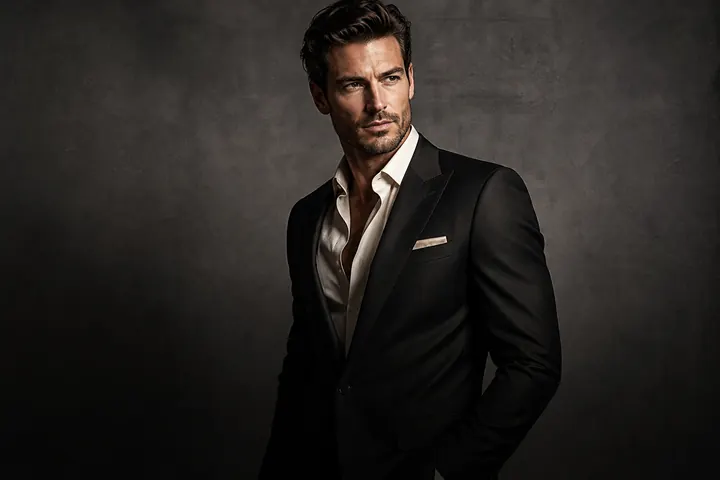
One-Click Business Photo
A business photo that looks like a startup's team page
Modern, relaxed, approachable — the tech-company team-page look.


Prompts to try in the app
- “Modern startup team photo, bright office background, slight smile”
- “Business casual portrait, blurred glass office behind me”
- “Make my outfit look like a sharp blazer, keep my face the same”
The "tech team page" look
Formal grey-backdrop corporate photos are giving way to something warmer: natural light, a softly blurred modern office, business-casual clothes and an expression that says "easy to work with". PhotoCrafter's One-Click Business Photo style recreates that look from any clear portrait.
Where to use it
- LinkedIn profile and banner
- Résumé and portfolio sites
- Conference and podcast speaker bios
- Slack, Teams and Zoom avatars
- Freelance marketplaces where a trustworthy face helps you win work
Tips
Pick a photo where your shoulders are visible — the style needs something to "dress". Then fine-tune by typing: "slightly warmer", "less background blur", "more formal". Every edit is saved as a new version, so you can always step back.
See also: LinkedIn profile photo tips that actually get more profile views.
How to use One-Click Business Photo in PhotoCrafter
- 1
Open PhotoCrafter
Download PhotoCrafter on iPhone, iPad or Android and open the app.
- 2
Add your photo
Tap + and pick a clear, well-lit photo from your camera roll.
- 3
Choose One-Click Business Photo
Open Styles and select One-Click Business Photo, or type an instruction like “Modern startup team photo, bright office background, slight smile”.
- 4
Refine and save
Type follow-up tweaks if you like, compare versions, then save or share.
FAQ
Is this different from the Professional Headshot style?
Yes. Headshot is a tighter, studio-style crop. Business Photo is a wider, more relaxed office look.
Can it change my clothes?
It can polish or restyle clothing if you ask in the chat editor, while keeping your face consistent.