Smart Crowd Removal
Remove tourists and strangers from your photos
Your travel photo — minus everyone who walked into it.

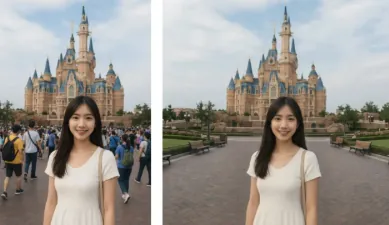
Prompts to try in the app
- “Remove all the people behind me”
- “Remove the tourists, keep the street”
- “Clean up the background, remove the person on the left”
The travel photo problem
Famous places are crowded. Waiting for an empty frame takes forever, and manual healing tools leave smudges. Smart Crowd Removal detects people behind you and fills in the background so the scene looks naturally empty.
How to use it
- Pick a photo where you are the clear main subject.
- Choose Smart Crowd Removal — or type "remove the people behind me".
- Not perfect? Type a follow-up like "also remove the person on the bench".
Related tools
- Remove Background for product shots and stickers
- Nature Background to swap in a new scene
How to use Smart Crowd Removal in PhotoCrafter
- 1
Open PhotoCrafter
Download PhotoCrafter on iPhone, iPad or Android and open the app.
- 2
Add your photo
Tap + and pick a clear, well-lit photo from your camera roll.
- 3
Choose Smart Crowd Removal
Open Styles and select Smart Crowd Removal, or type an instruction like “Remove all the people behind me”.
- 4
Refine and save
Type follow-up tweaks if you like, compare versions, then save or share.
FAQ
Will it remove me by accident?
The style is designed to keep the main subject. If needed, describe exactly who to remove.
Does it work on busy city shots?
Yes, though very dense crowds may take a follow-up instruction to finish cleanly.